
Connect Your Domain
*For most users, this is one the more technically challenging parts of setting up their account.
If you have any questions at all, please use the support portal to contact our team.
If you want a branded domain setup for your website, email, client-facing links, and more, we can handle this for you.
See the "done-for-you" options in your account's left menu to learn more.
*For most users, this is one the more technically challenging parts of setting up their account. If you have any questions at all, please use the support portal to contact our team.
If you want a branded domain setup for your website, email, client-facing links, and more, we can handle this for you. See the "done-for-you" options in your account's left menu to learn more.
Don't have a domain?
Click here to skip to the information about purchasing a domain through your Full Scope account.
Connect Your Domain
If you already own a domain, you can connect it to Full Scope by navigating to Settings > Domains.
Then click "Connect a Domain":
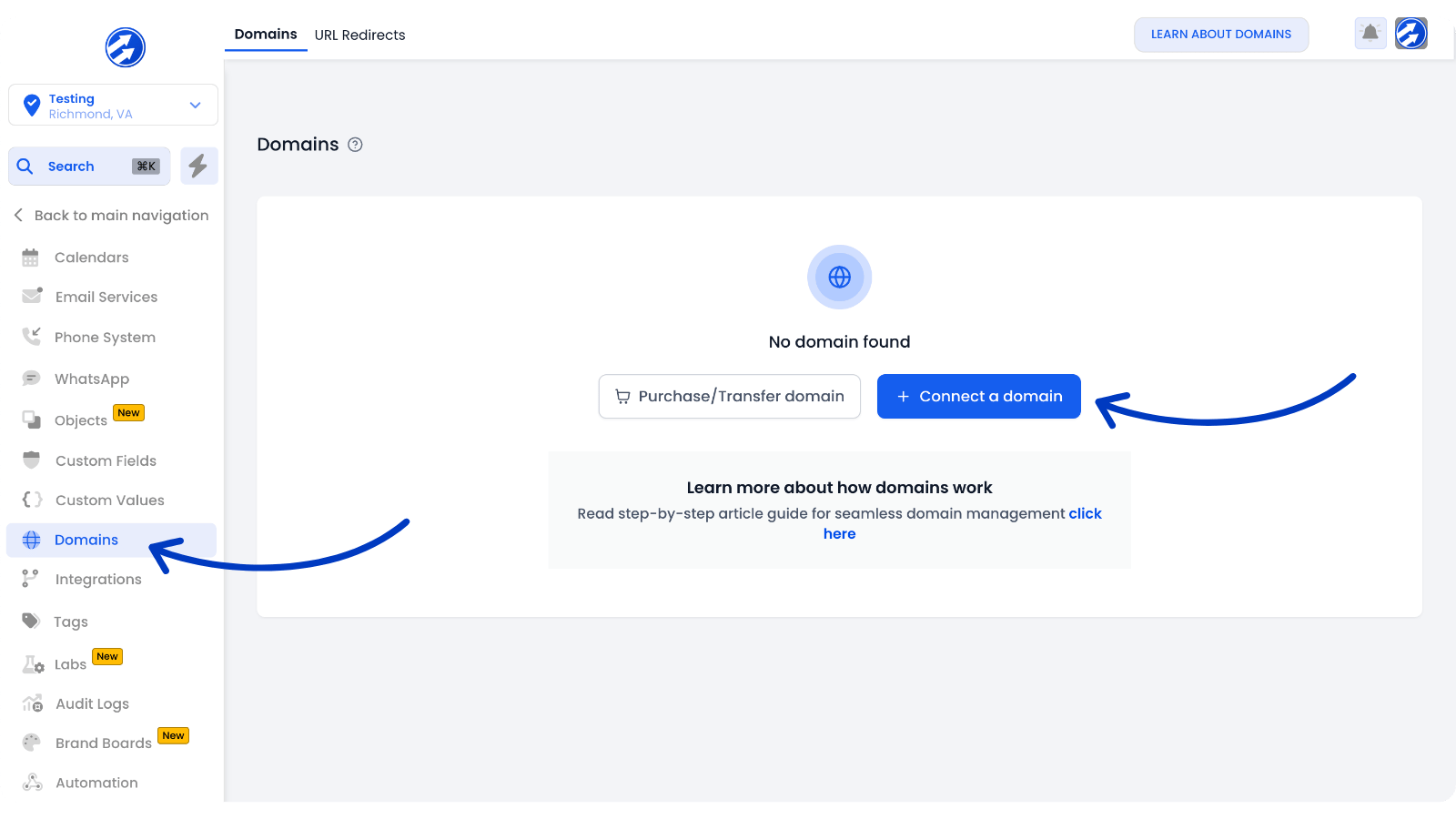
There are several different tools you can use your custom domain with, such as email marketing, your client portal, and more.
IMPORTANT! If you don't understand the difference between root and sub-domain management, do not set up anything besides the website/funnel domain just yet. Read this article first so you don't make any domain-related missteps that could cause problems later on.
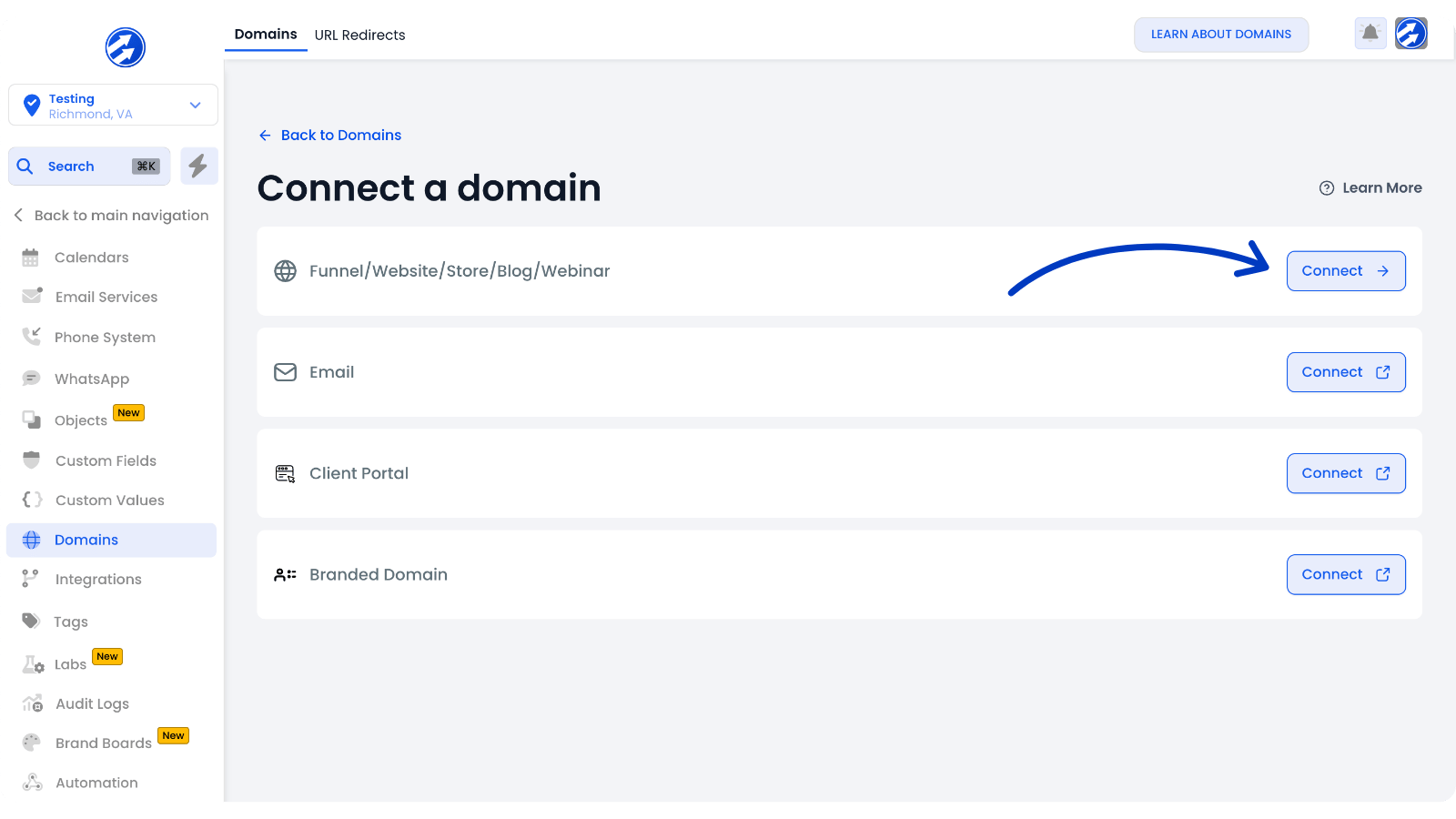
For this demonstration, we'll assume you're connecting your domain to use with your website - the most common reason customers go through this process.
Click "Connect" next to the Funnel/Website/Etc... option:
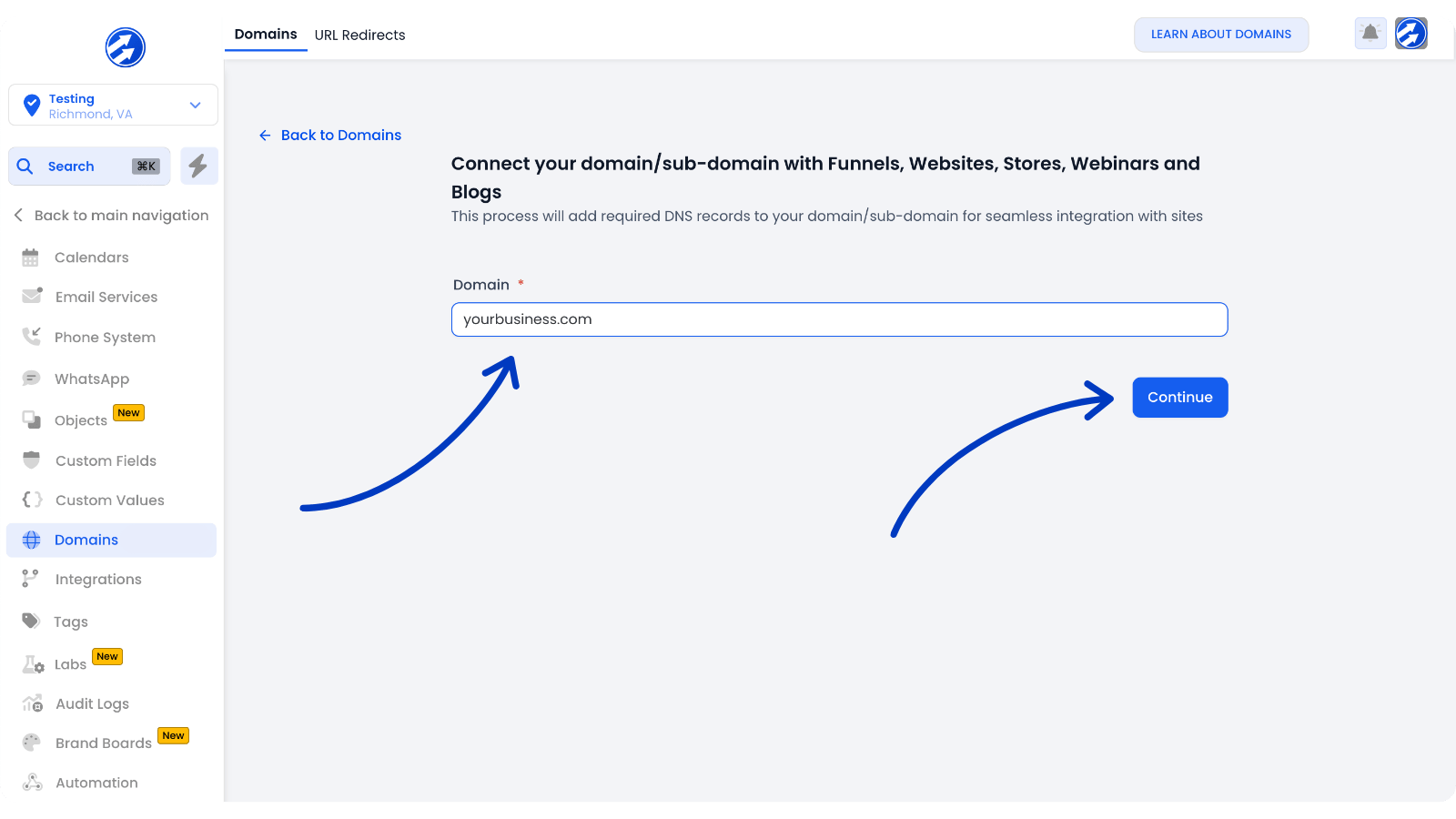
Type your domain into the field under "Domain" and click "Continue":
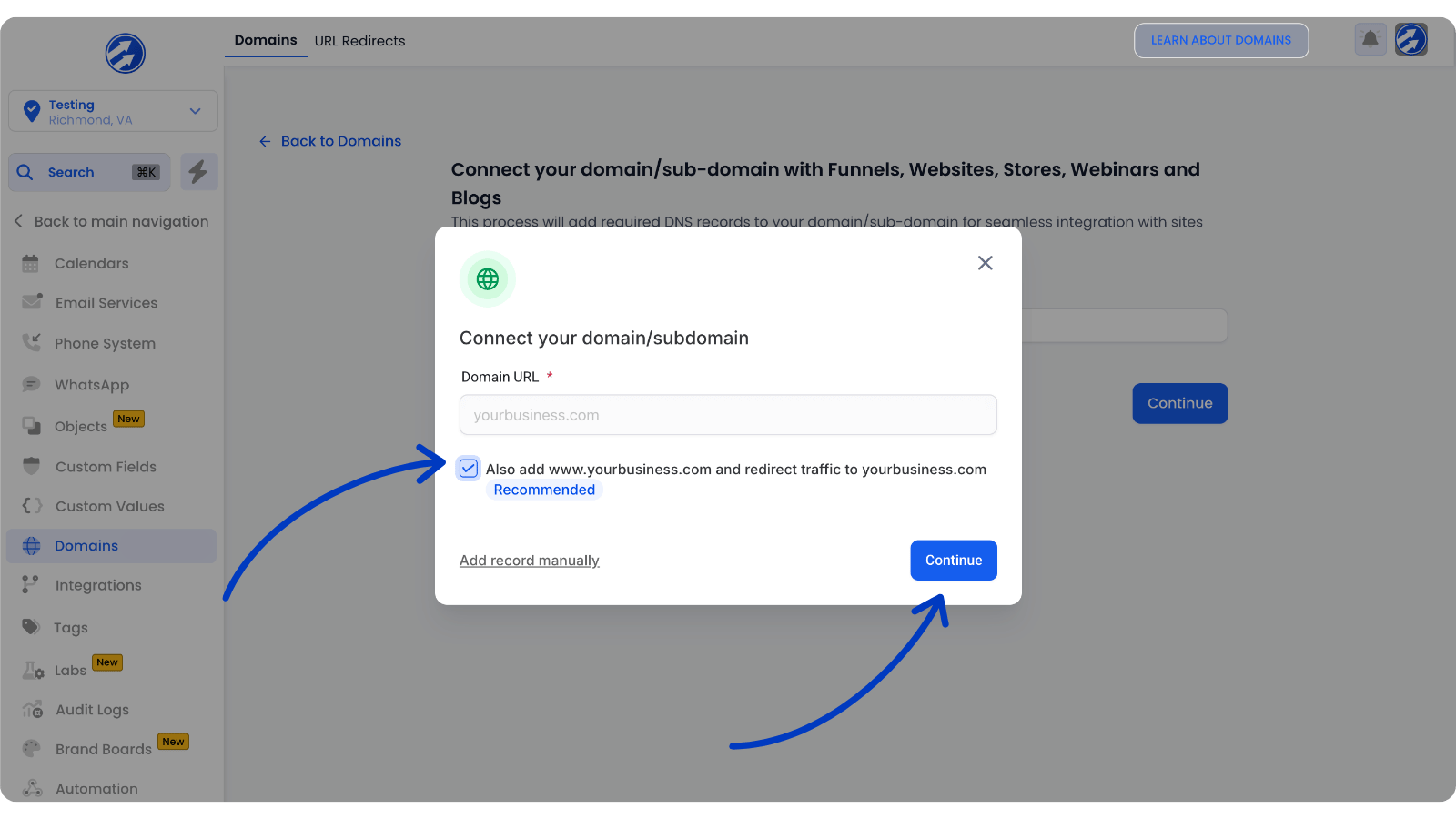
After that, you'll see the screen below.
We recommend leaving the box with the information about adding "www" checked unless you have a good understanding of root and sub-domain management.
From here, simply click "Continue":
With some domain providers, an automatic connection can made and you'll need only to log in to your domain provider to give permission.
With others, you'll have to add the DNS records manually to finish this process.
If editing DNS settings is required for your domain and this is something you're not familiar with, please read this more in-depth article:
Purchase a Domain
Don't have a domain yet?
No problem!
You can purchase a domain directly through us, leaving you with one less account to manage and making integrating your website and other domain-related features even easier.
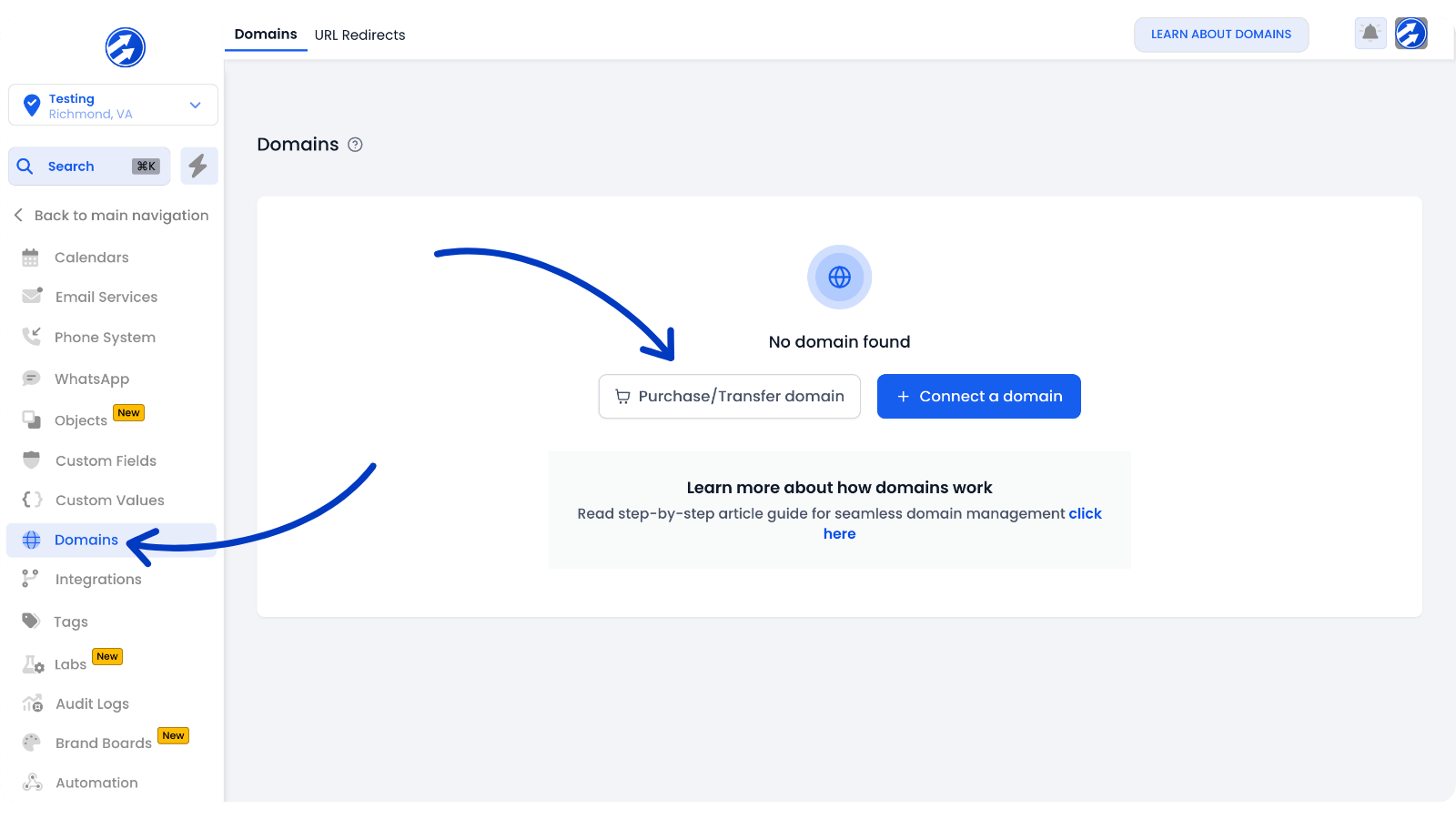
First, head to Settings > Domains and click "Purchase Domain":
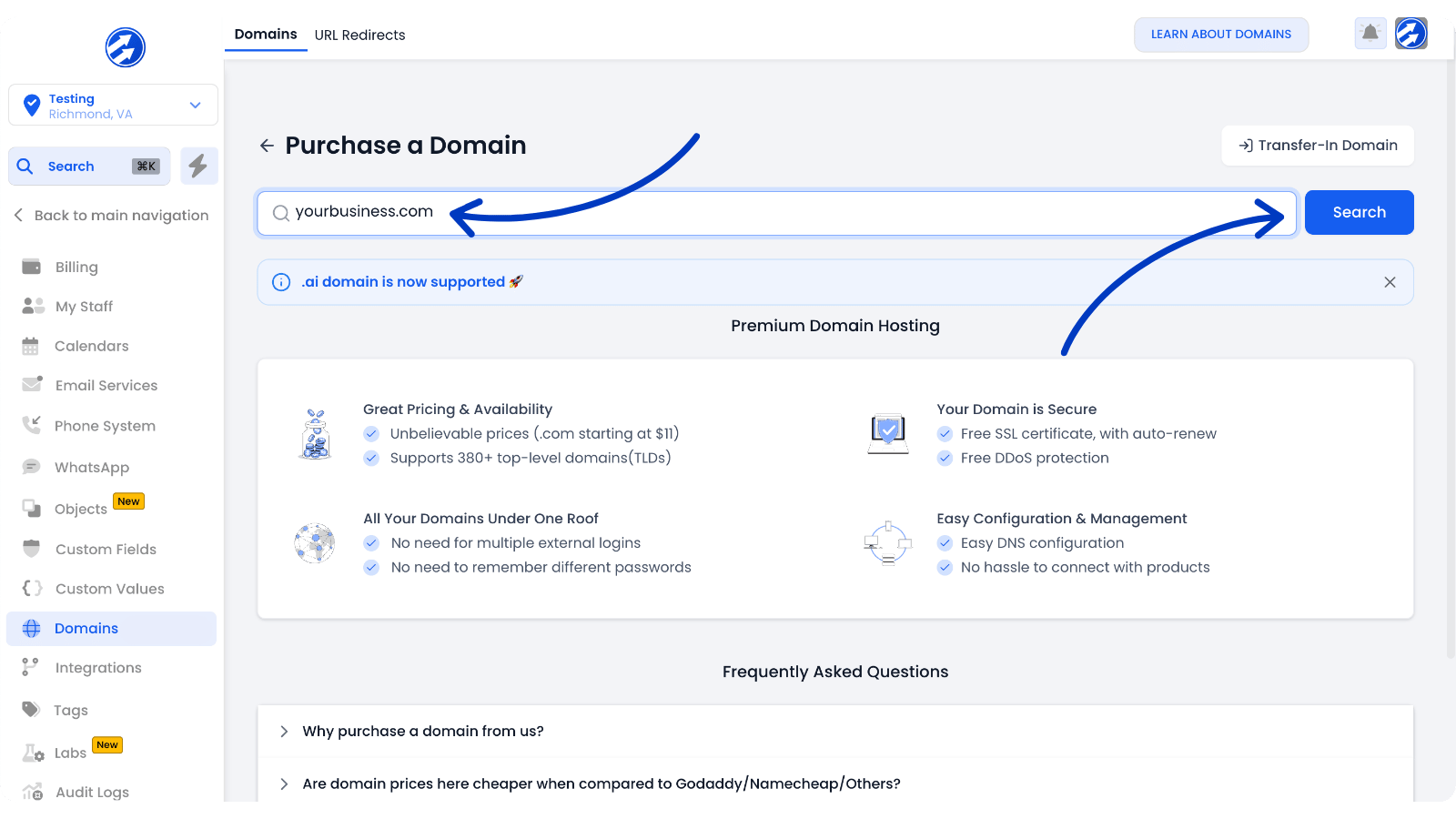
Type in the name you'd like for your domain and click "Search" to see if it's available:
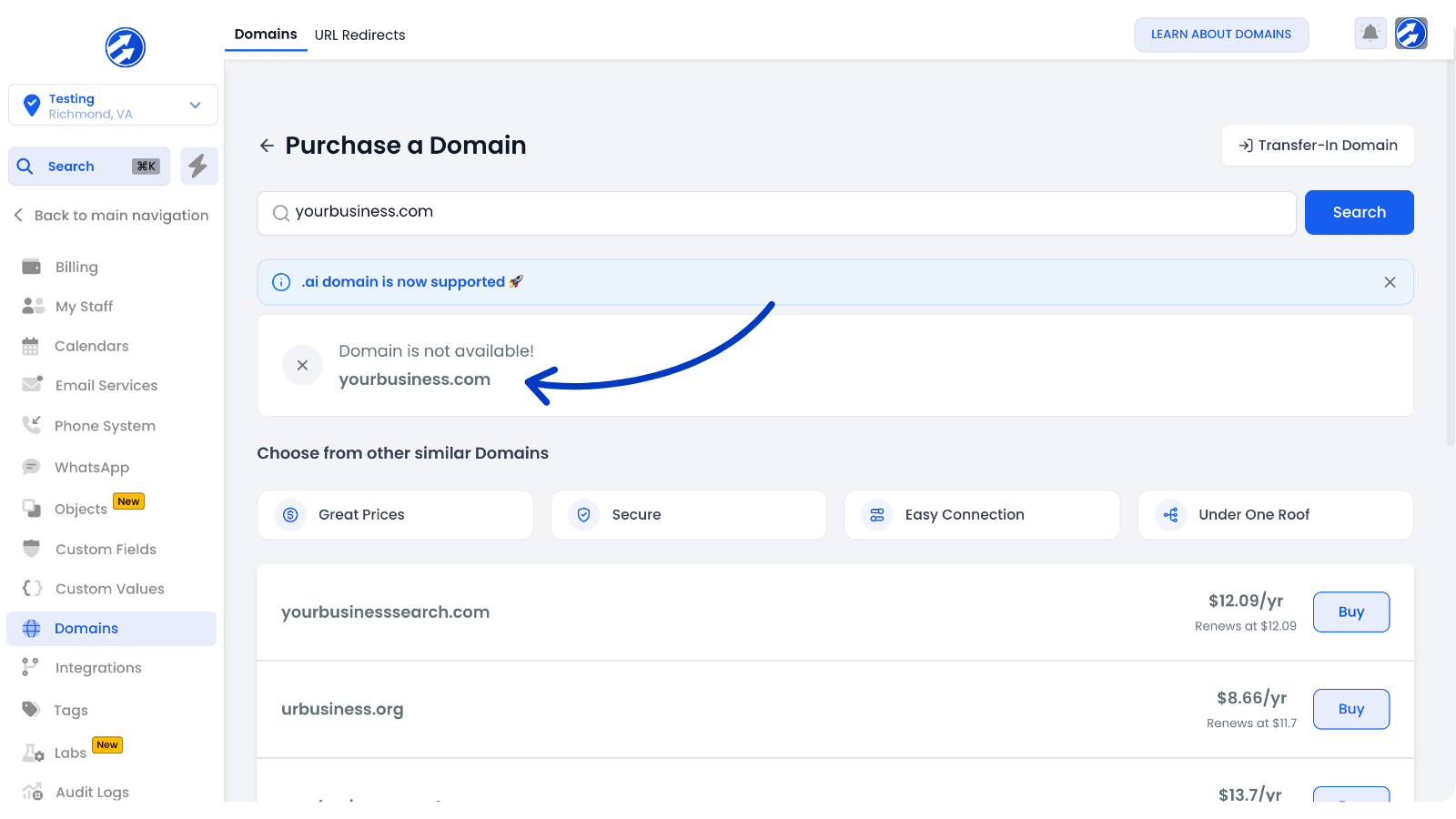
If your domain is available, great! You can click "Buy" and continue.
Otherwise, you may have to look at some other options or try a new idea in the search bar.
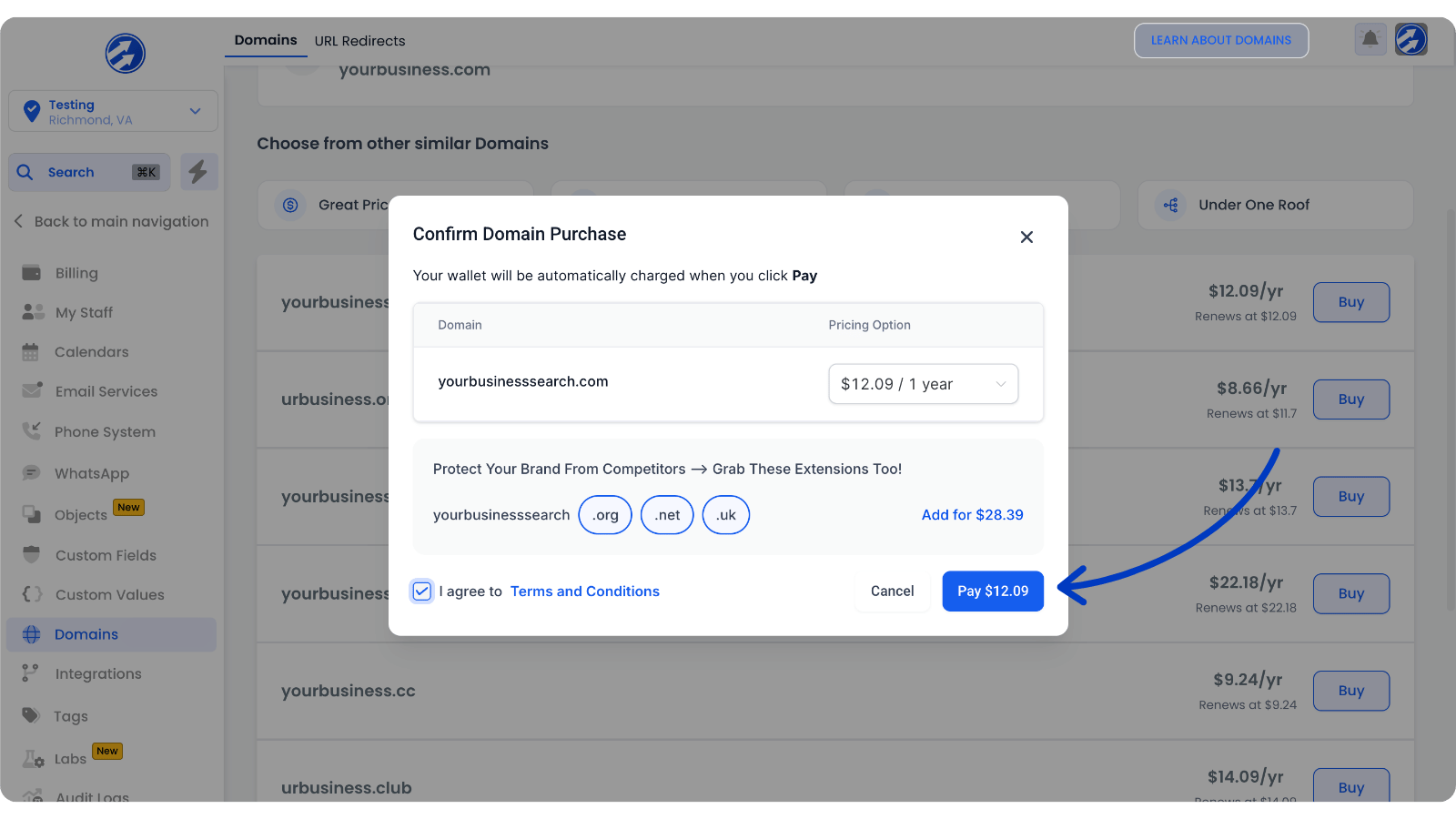
Once you find the perfect fit for your business, simply click "Buy" and accept the terms and conditions before making your purchase.
As with all domain providers, your domain will be renewed on a yearly basis.
The costs will be deducted from your account's wallet, which is tied to your credit card - meaning you don't have to think about it at all. It's automatically taken care of from here on out!
© Copyright 2026 | Full Scope | All rights reserved
© Copyright 2026
Full Scope
All rights reserved