
Account Walkthrough & Basic Settings
If you need your full business address on your invoices, please add it under Settings > Billing > Payments. Until then, your Full Scope invoices won't have your full details and may not be compliant for your jurisdiction or tax purposes. Click here to learn more and reach out to [email protected] if you have questions.
For those who prefer to read:
The first screen you'll see when you log in is your dashboard - a customizable area you can use to get a quick overview of all your most important business metrics.
Your to-do list, revenue, upcoming appointments, website and email stats, and more can all be monitored here.
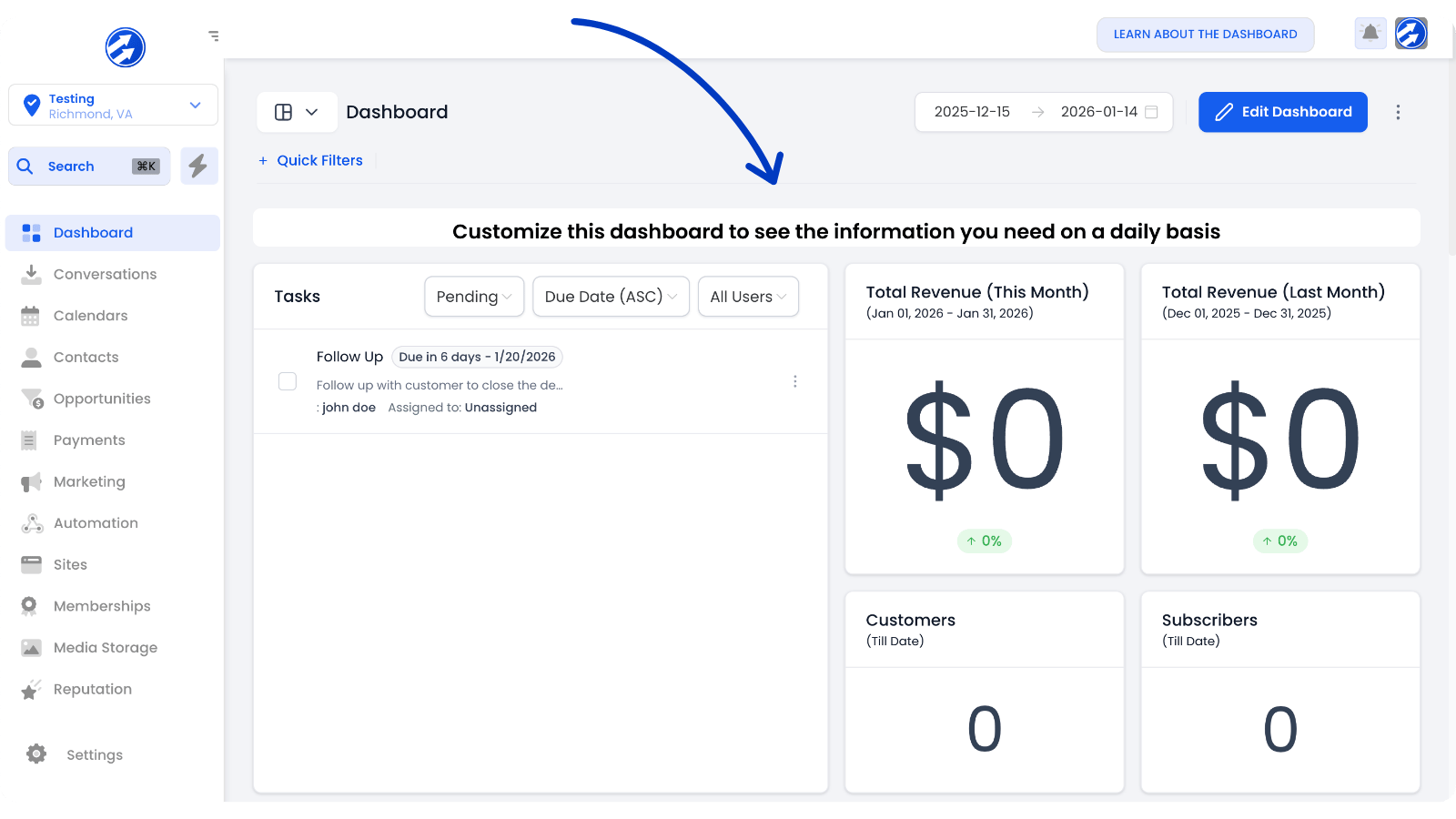
The left menu is where you will access the tools now available to you through your subscription.
Most of the options should be fairly self-explanatory but feel free to click through a bit to discover which options await you in the different tabs.
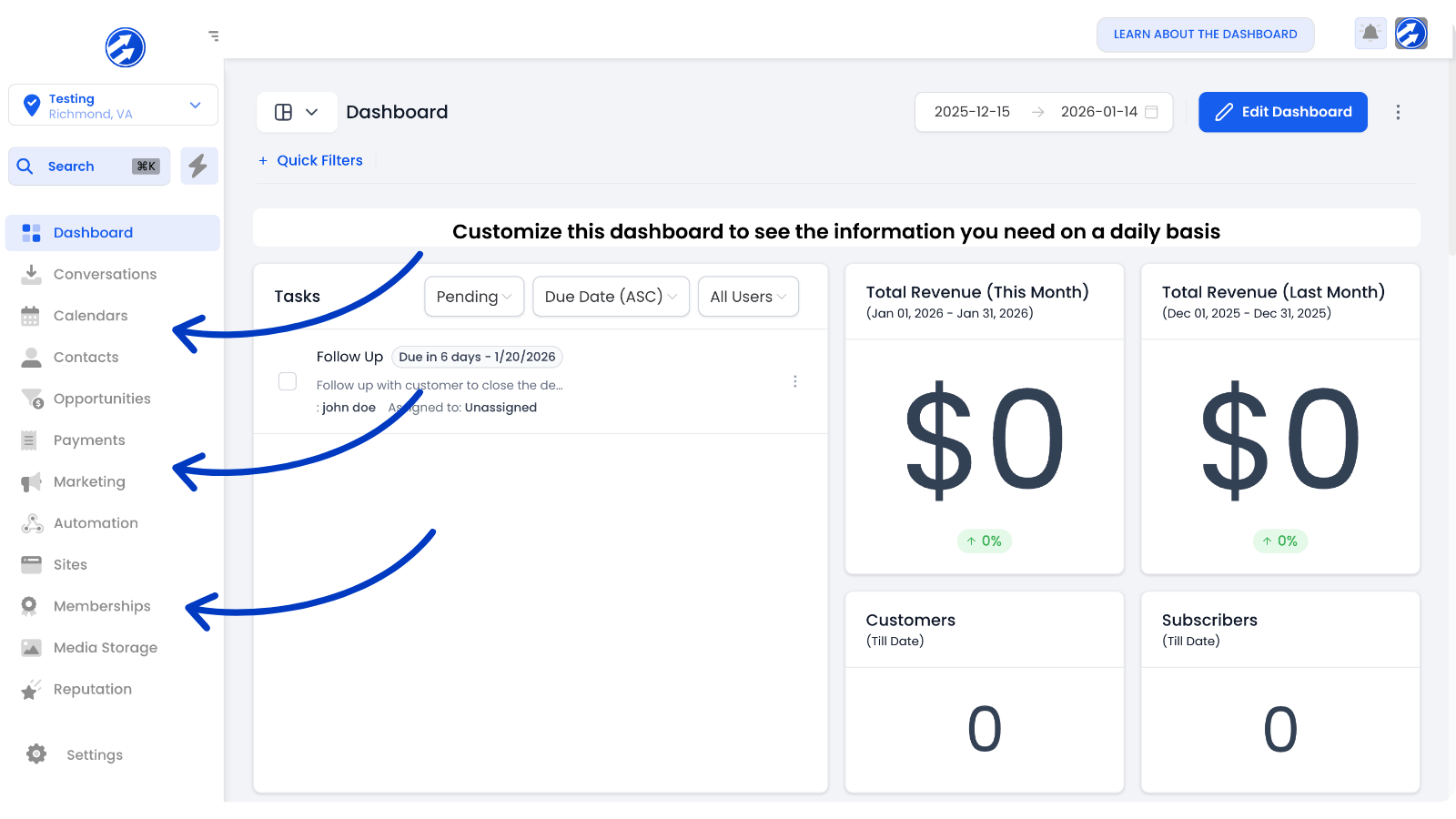
Let's now navigate to the Settings area
We're going to walk you through the basic Settings options and explain what you’ll want to adjust.
Let’s get started!
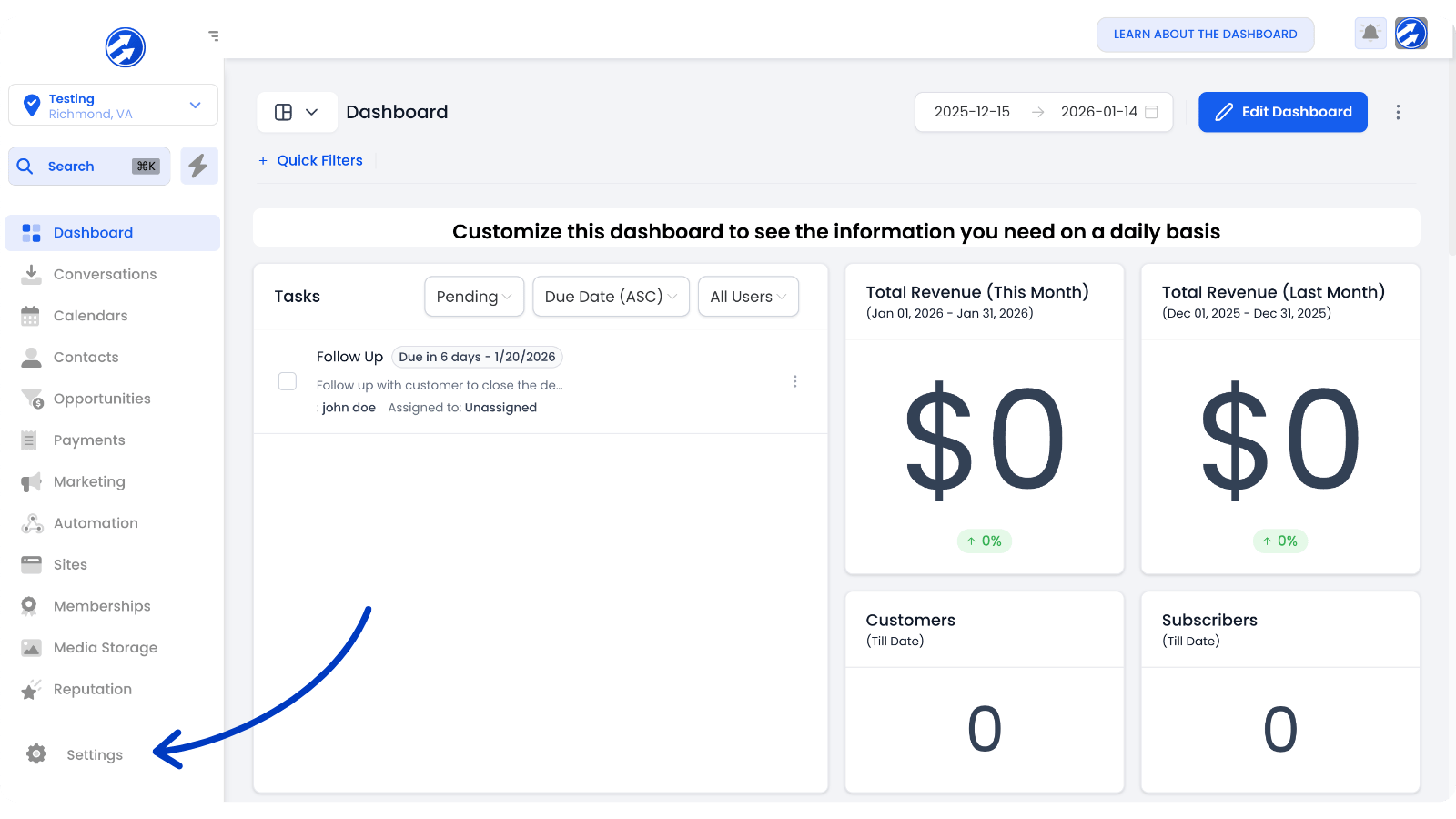
First, click Settings at the bottom of the left menu.
Business Profile Settings
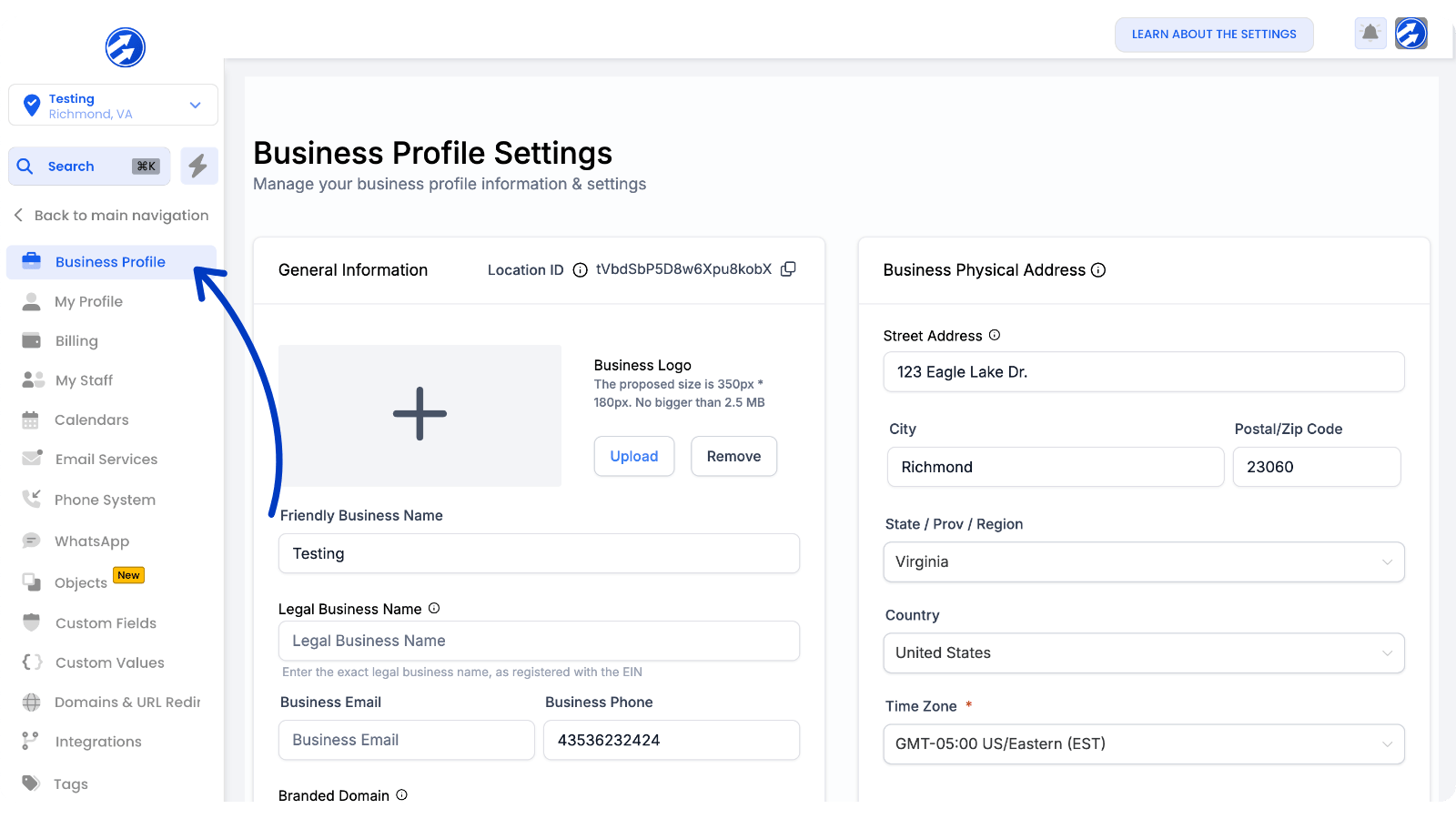
When you click "Settings" you'll see a list of new options in the left menu, the default page you'll land on is the "Business Profile".
Click "Back to main navigation" to leave the settings area and return to previous menu.
In your Business Profile, you can enter basic information for your business such as your email address, phone number, website, etc...
Your logo and business information can be auto-populated across other areas of the platform such as in forms and email campaigns, invoices, etc... so make sure this information is correct.
Not all of these fields will be applicable to every business, so feel free to fill out only those that make sense for you.
My Profile Settings
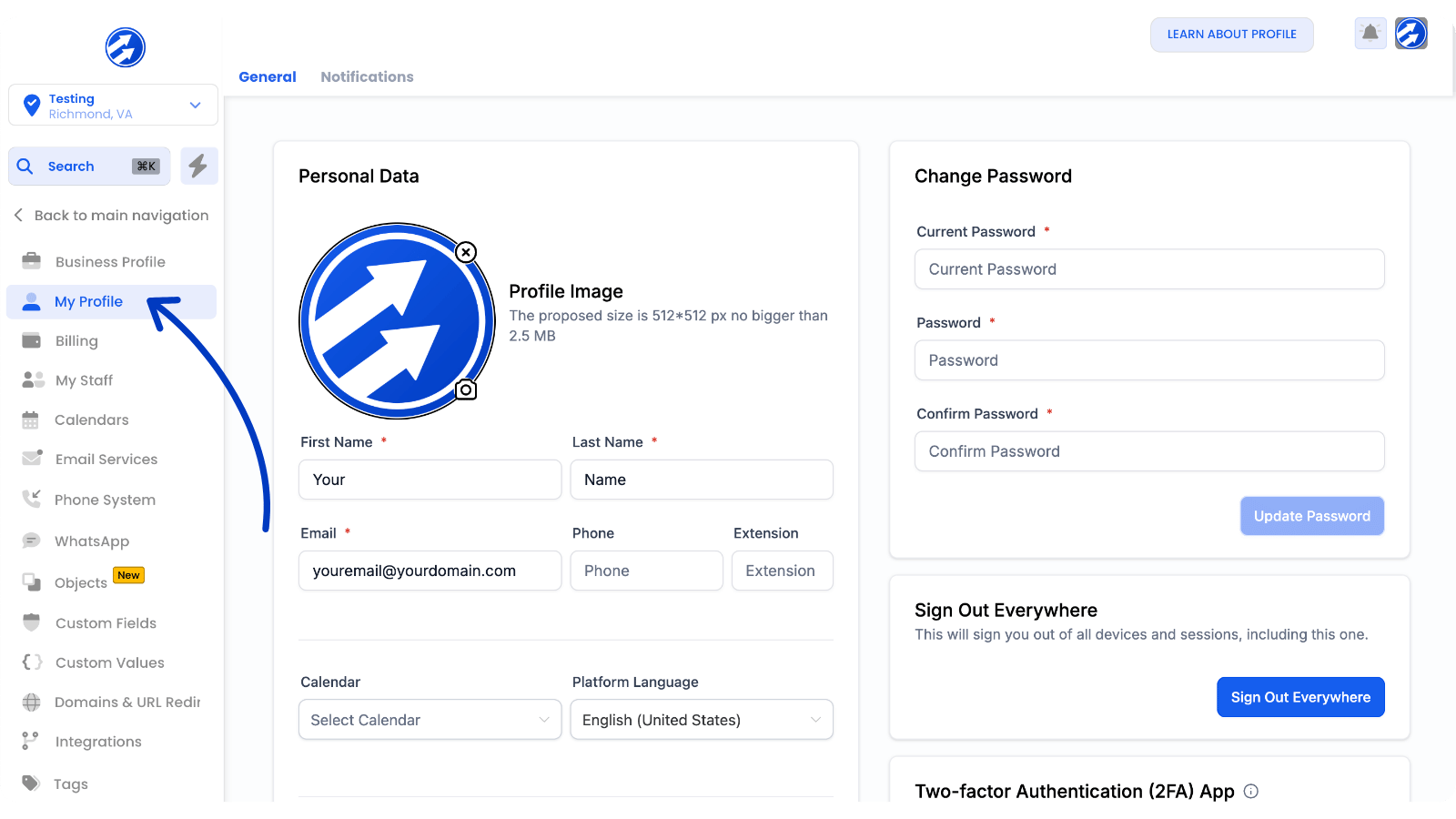
Now click "My Profile".
Here, you can enter your personal details and any contact information that is different perhaps from your business profile.
For example, your business may have a public email address and you may have a personal address that varies from that.
On the right side is where you can change your account password
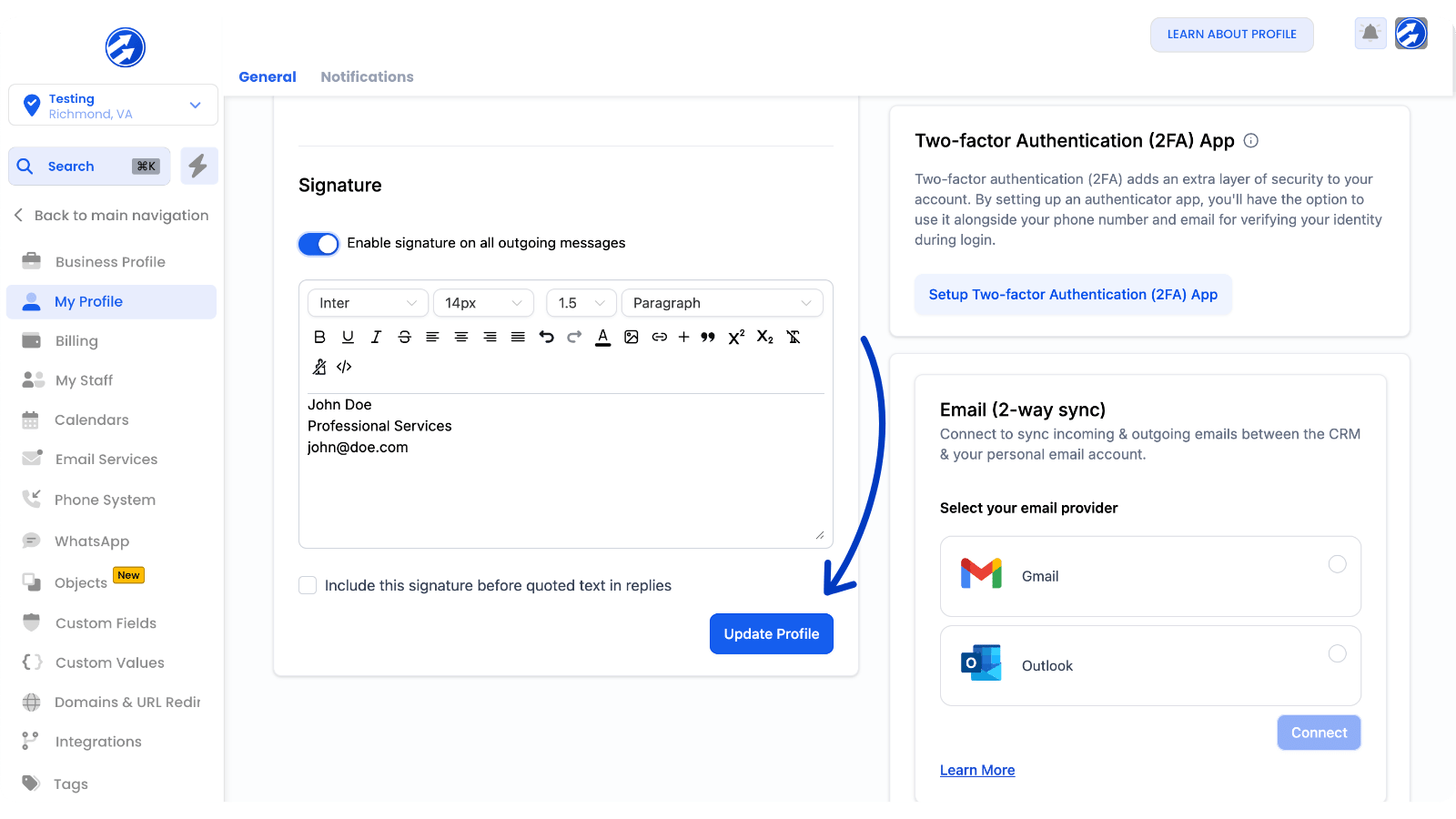
In this area you can configure things such as your Email Signature and Availability.
Make sure you click Update to save any changes you’ve made before exiting any of these windows.
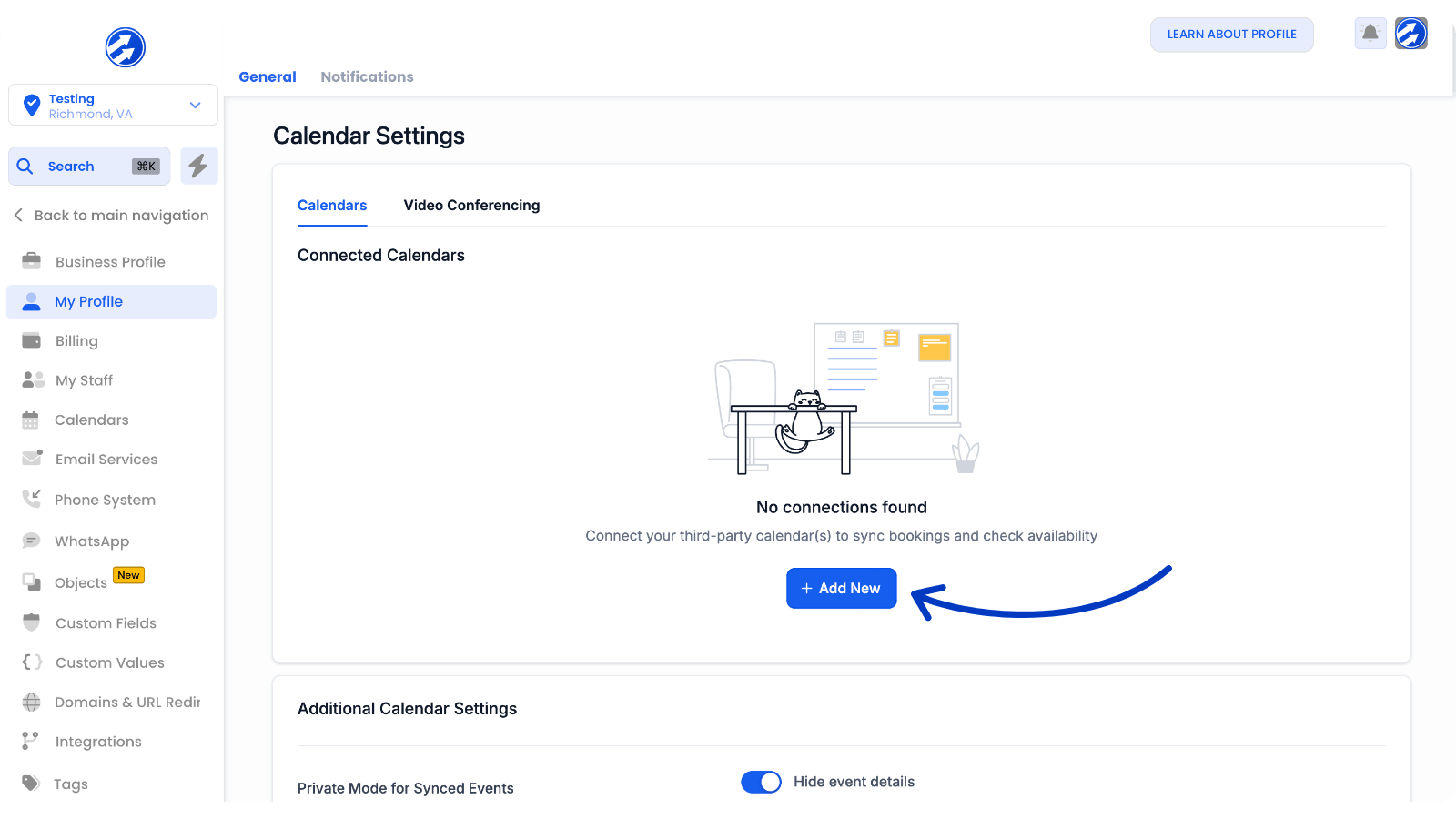
Scroll down even further to find an Integrations area for your calendars and video conferencing tools.
Here, you can connect tools such as Google Calendar, iCal, Zoom, and Google Meet.
Integrations
There are other places within the platform where you can integrate third-party tools.
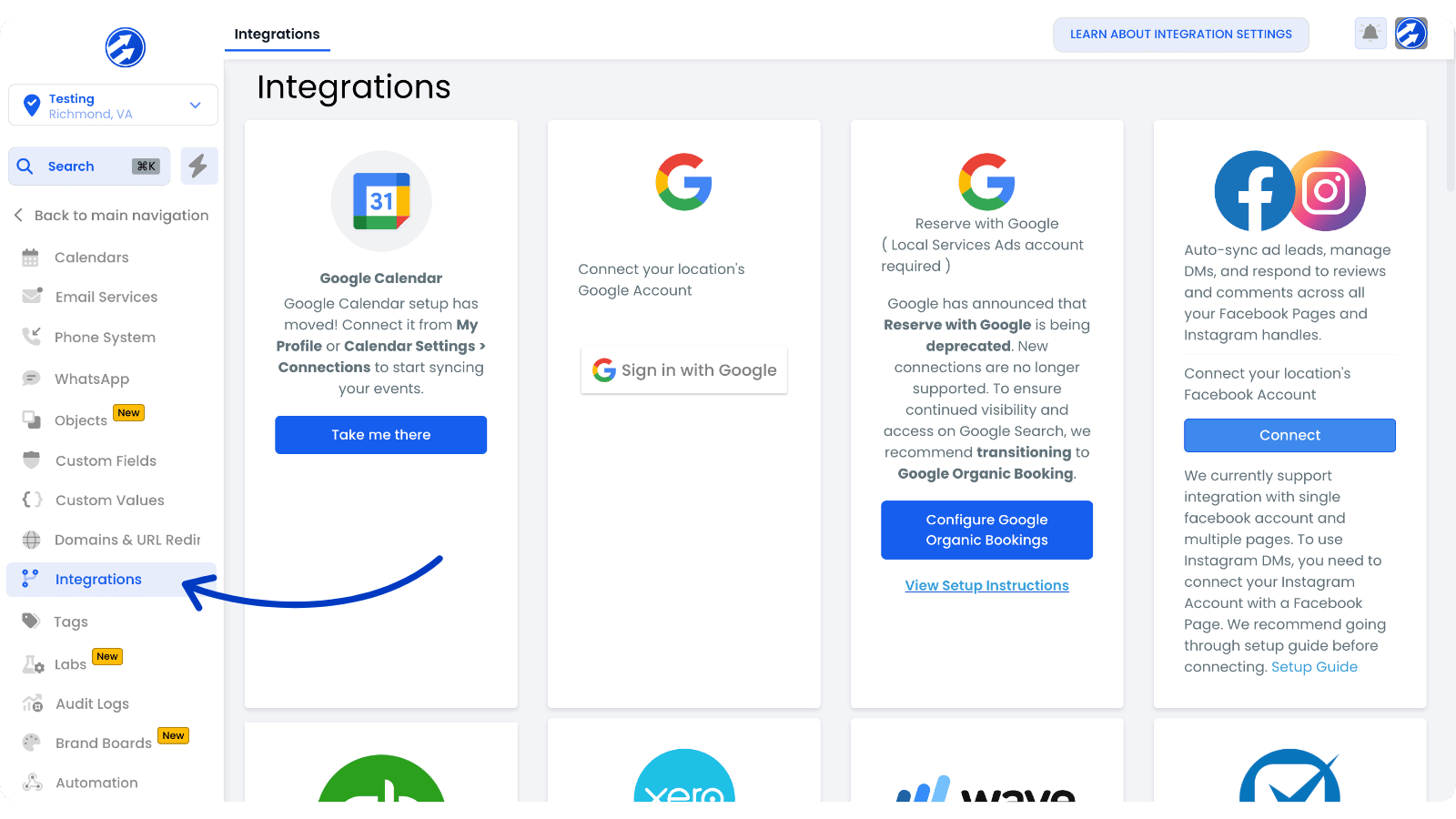
In the left menu, scroll down until you find "Integrations"
Here you can connect to the most common tools such as Google accounts, social media, Stripe, Shopify, etc...
If you don't see a tool you'd like to integrate with here, it is likely available in the specific section of the account where you'd use the integration (for example, there are other payment platforms you can integrate with in the "Payments" area of your account).
That’s all for now!
If you need help with other aspects of the "Settings" area, be sure to check out our knowledge base.
© Copyright 2026 | Full Scope | All rights reserved
© Copyright 2026
Full Scope
All rights reserved